MingToon Manager
This page is for anyone handling a whole avatar at once. Conversion, role assignment, mesh bakes, and upload checks all happen in one component. It takes about 15 minutes.
What is this
A component that gathers avatar-level work instead of per-material work. Attach it to the topmost object of the avatar and leave it there when you are done.
When to use it
- When you move an avatar to MingToon for the first time
- When you change outfits and the Renderer setup changes, and when you check before uploading
Try it in 30 seconds
- Select the topmost object of the avatar in the Hierarchy.
- Press
GameObject > MingToon > Add MingToon Manager. - Check that the Get Started tab is open.
You succeeded when the top line reads MingToon: 0 slots · To convert: N.
If to convert is 0, go to Troubleshooting.

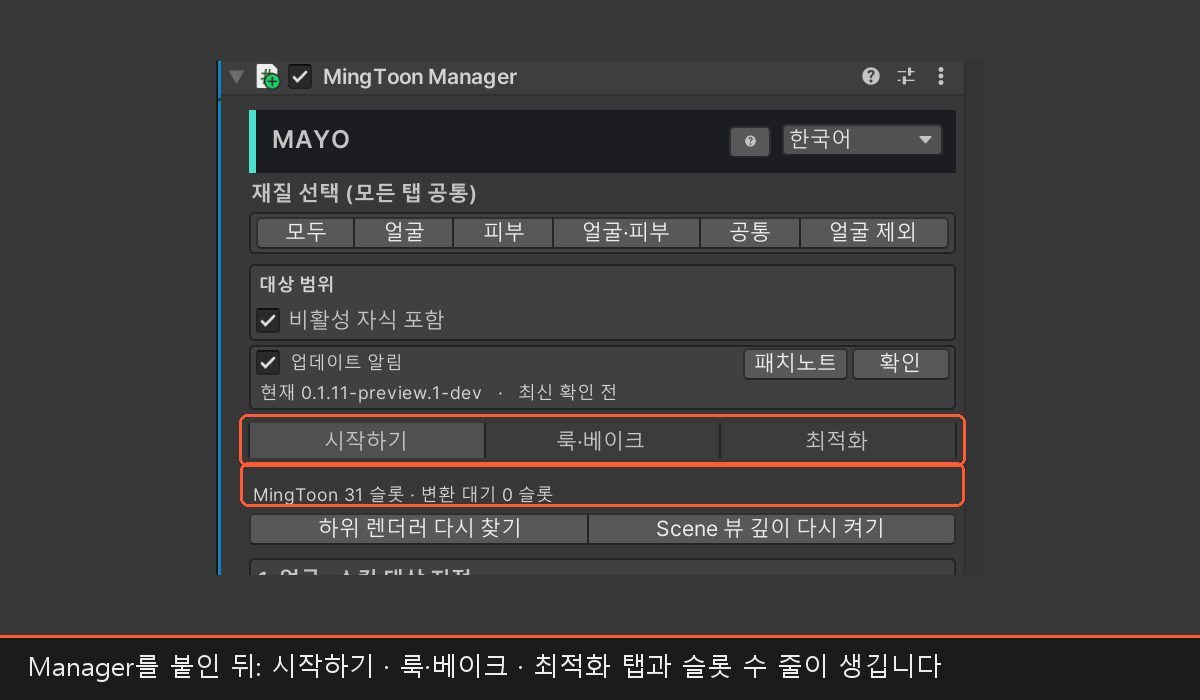
How to turn it on
The slot count line
There is a single line at the top of the Get Started tab.
It counts the current setup in the form MingToon: N slots · To convert: N.
The first number is slots already on MingToon, and the second is slots not yet converted.
If you change outfits and the numbers no longer match, press Refresh Child Renderers.
Four cards follow below it in order. 1. Assign face & skin renderers · 2. Choose look → Convert · 3. Lighting controls · Optional · 4. Build & upload automation.
The Get Started tab: conversion
lilToon materials carry over most completely. Standard and URP Lit carry over only color, textures, normals, emission, occlusion, and render states. The steps are in lilToon Material Conversion.
Slots that are not converted
Particles and VFX, refraction and gems, fur and shells, and audio-reactive materials are left as they are. The same applies to flipbook, scroll, and time animation, and to outline-only, overlay, and helper passes.
Face and skin assignment: the most important step
Fill in Direct Face Renderer and Direct Skin Renderer in 1. Assign face & skin renderers.
Then press Mark Roles on the Named Renderers.
You can pin each slot to one of Auto · Face · Skin · Regular.
If clothing and hair are mixed into the skin renderer, return those slots to Regular.
Auto reads only the face flag the source material itself carries. Converting from a shader without that flag leaves everything as Regular.
Look Preset On Convert
In 2. Choose look → Convert, pick the look first and the color second. The look list is Basic Toon High · Hard Toon High · Soft Toon High, each with a Low variant. High is the reference look that turns depth effects on, and Low is the lighter side with depth effects off. Pick None to apply no look, or Keep Existing Values to keep the source colors. Keep Existing Values still applies the look, and the result is not identical to the source.
Scope and material selection
- Scope · Include Inactive Children — decide how far counts as this avatar.
- Refresh Child Renderers — press it after changing outfits.
- Select All MingToon Materials · Select Face Materials Only — hand off to Editing Multiple Materials.
The editor runtime preview only works where scripts remain, so do not expect it to match the VRChat appearance.
The Look & Bake tab
Pick the mesh channels you need and bake or rebake them. Channels that are already filled are rejected unless you turn on Overwrite Occupied UV Channels. Face normals are computed Live while editing and baked only into the VRChat upload copy. If proxy adjustments are not reflected, run Release Baked Face Normals. The channel descriptions are in Mesh UV Bakes. Conversion records Renderer, Mesh, and material changes in a journal, so it recovers if it is interrupted. Undo Conversion (back to pre-MingToon materials) returns only the current slots to the source. It is a single Undo step, so edits you made just before can disappear with it.
The Optimize tab and uploading
Most people can skip this tab. Automatic optimization runs on upload by itself. Texture Resolution Limits (On Upload) applies to every project in this Unity editor. Quest (Android) builds are not supported. Outlines, semi-transparency, and depth effects are all dropped.
Preparing for a VRChat upload
Manager does not install VRChat Expressions menus, parameters, or FX. To control brightness and color from an expression menu, see Ming Light Controller.
- Refresh the current Renderer scope with Refresh Child Renderers.
- Run
StudioRaming > MingToon > Validate Projectand fix the errors. - Check that the
To convertslot count on the top line is 0. - Upload with the VRChat SDK Builder.
- After uploading, check your own view, a mirror, and the Photo Camera separately.
Deleting Manager loses the cached renderer list, so upload optimization loses its scope.
Export and validation
Upload readiness check
Run the pre-upload check with StudioRaming > MingToon > Validate Project.
It reports project conditions such as shader model, Unity version, and URP renderer features, along with codes.
What each code means is in Validate Project Codes.
Check the avatar-level state with the slot counts on the top line and the last conversion result.
You must check yourself that no MingToon runtime component remains in the build clone.
Values you will touch often
| Inspector label | What it changes | Suggested starting value | Raise it / lower it |
|---|---|---|---|
| Include Inactive Children | Whether disabled outfit and expression meshes are in scope | On | Off drops those slots from optimization and baking |
| Outline Smooth Normals (UV8) | Keeps outlines from breaking on sharp corners | On | Off splits the line at corners |
| Overwrite Occupied UV Channels | Whether a UV channel already in use can be reused | Off | On overwrites someone else's data and breaks the look |
| Preserve Animatable Passes (Safe) | Whether values animation touches are kept | On | Off can remove effects you switched on through FX |
Common problems
I converted and the face shadow is identical to the body
The face slot is still Regular. Redo the role assignment above.
I changed outfits and only the new clothes miss optimization
Press Refresh Child Renderers. The cache is holding the old Renderer list.
More detail
lilToon Material Conversion · Automatic Optimization On Build · Mesh UV Bakes · VRChat Compatibility Rules